Cue to Cue user guide
Every feature, in the order you'll need it. ✦ marks Pro features.
Getting started
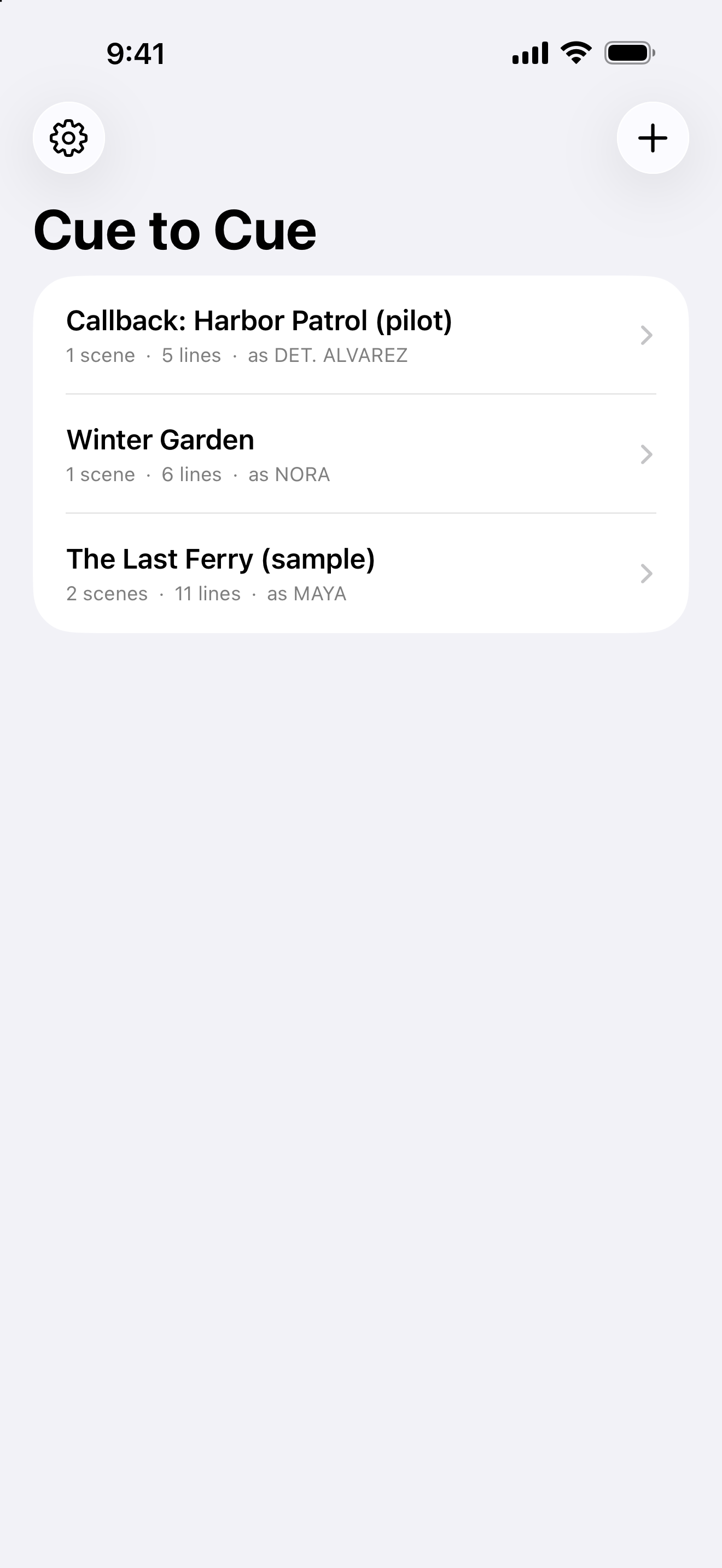
- Tap + on the home screen and add a script, or try the sample, The Last Ferry.
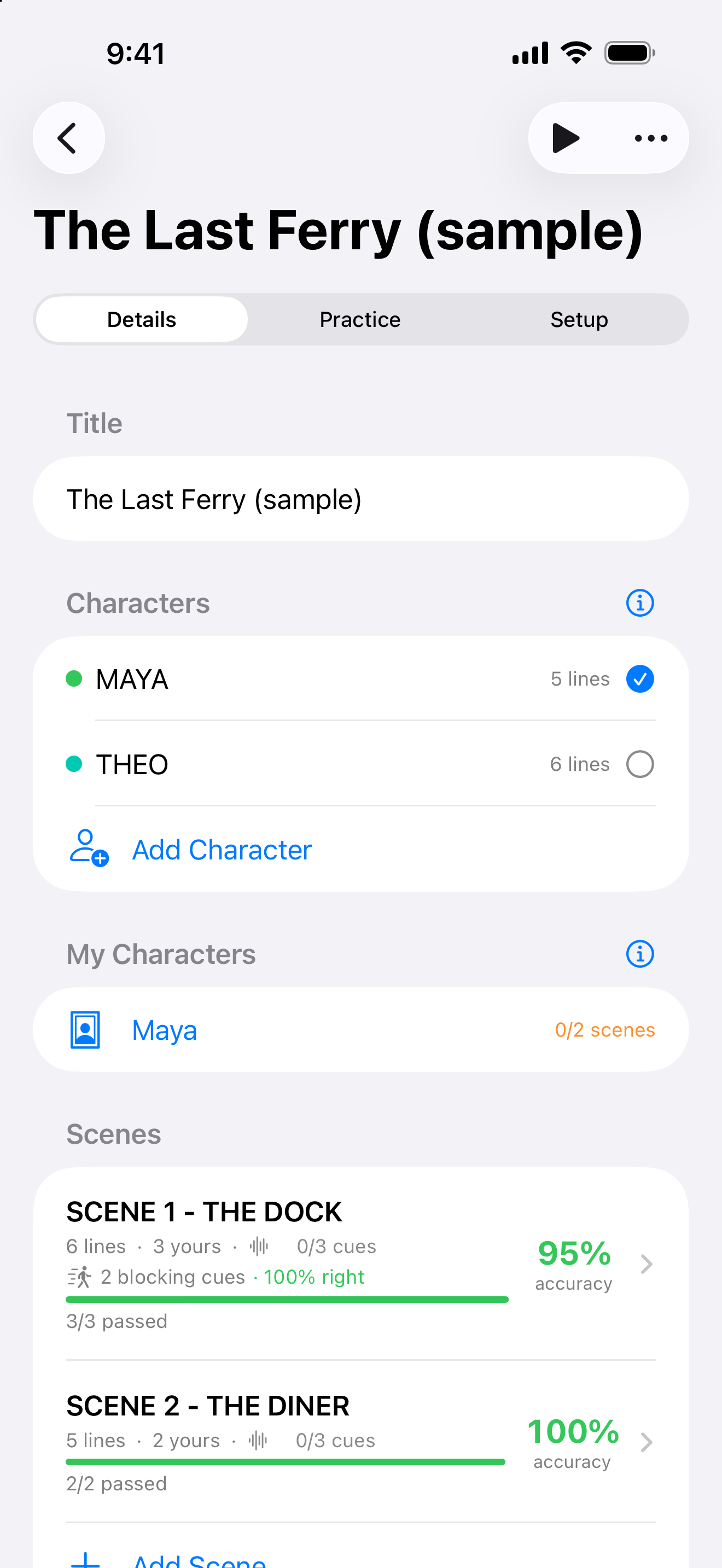
- Open it, go to Details, and tick the character you're playing.
- Go to Practice, pick a practice type, adjust its settings, and tap Start.
The first time, allow microphone and speech recognition so Cue to Cue can hear you.
Adding a script
From the + menu: paste text, import a PDF / text / image file, pick photos of your pages, or scan pages with the camera. You'll see a preview before anything is saved.
Cue to Cue reads screenplays (NAME above dialogue), plays (MAYA: line), acting editions (MAYA. line) and wide-gap layouts. Stage directions and (parentheticals) become directions or notes, never words you have to say. Crossed-out lines, page numbers and watermarks are left out.
💡 Free covers one script up to 30 lines. The sample script doesn't count.
Your script: Details, Practice, Setup
- Details: title, characters, your character work, scenes. Tap a scene to edit lines or record partners.
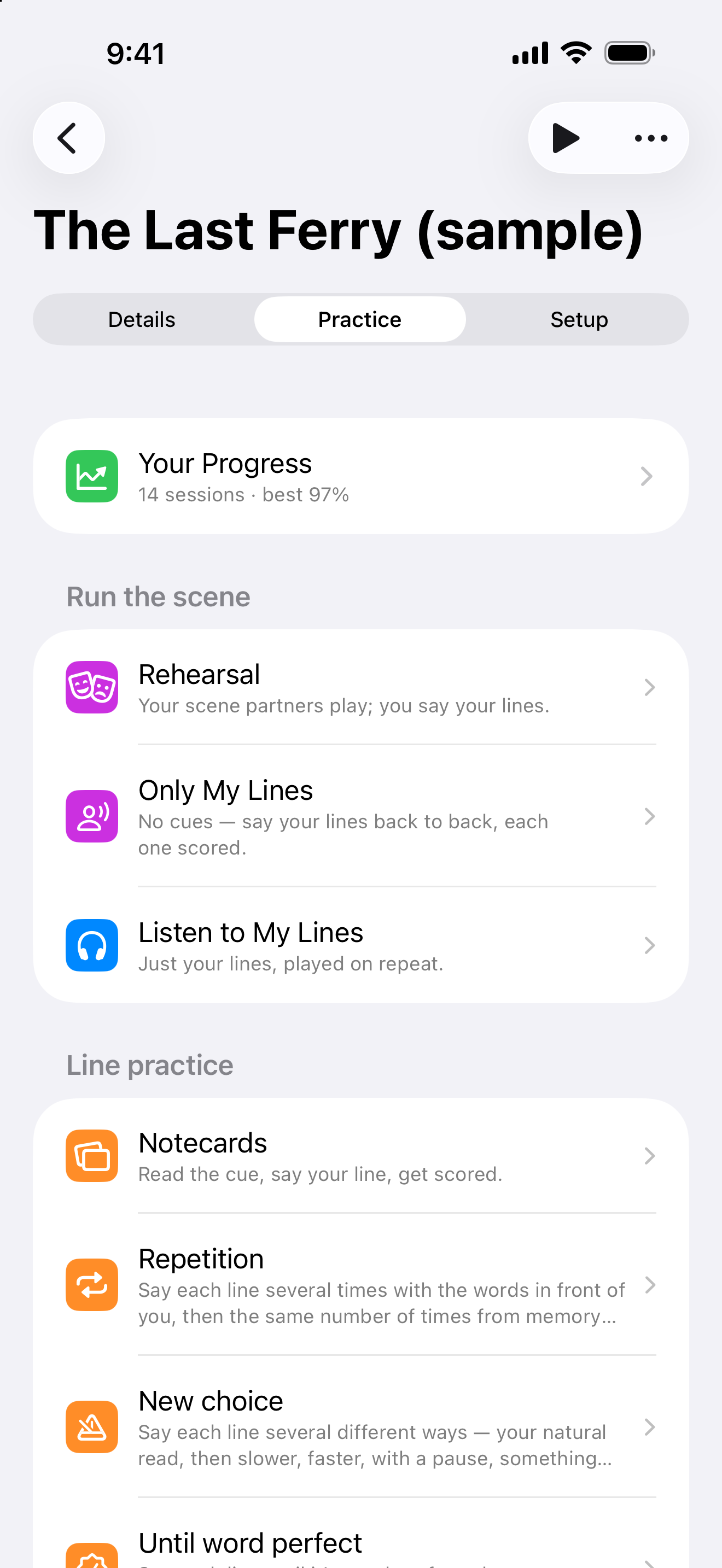
- Practice: every practice type and Your Progress.
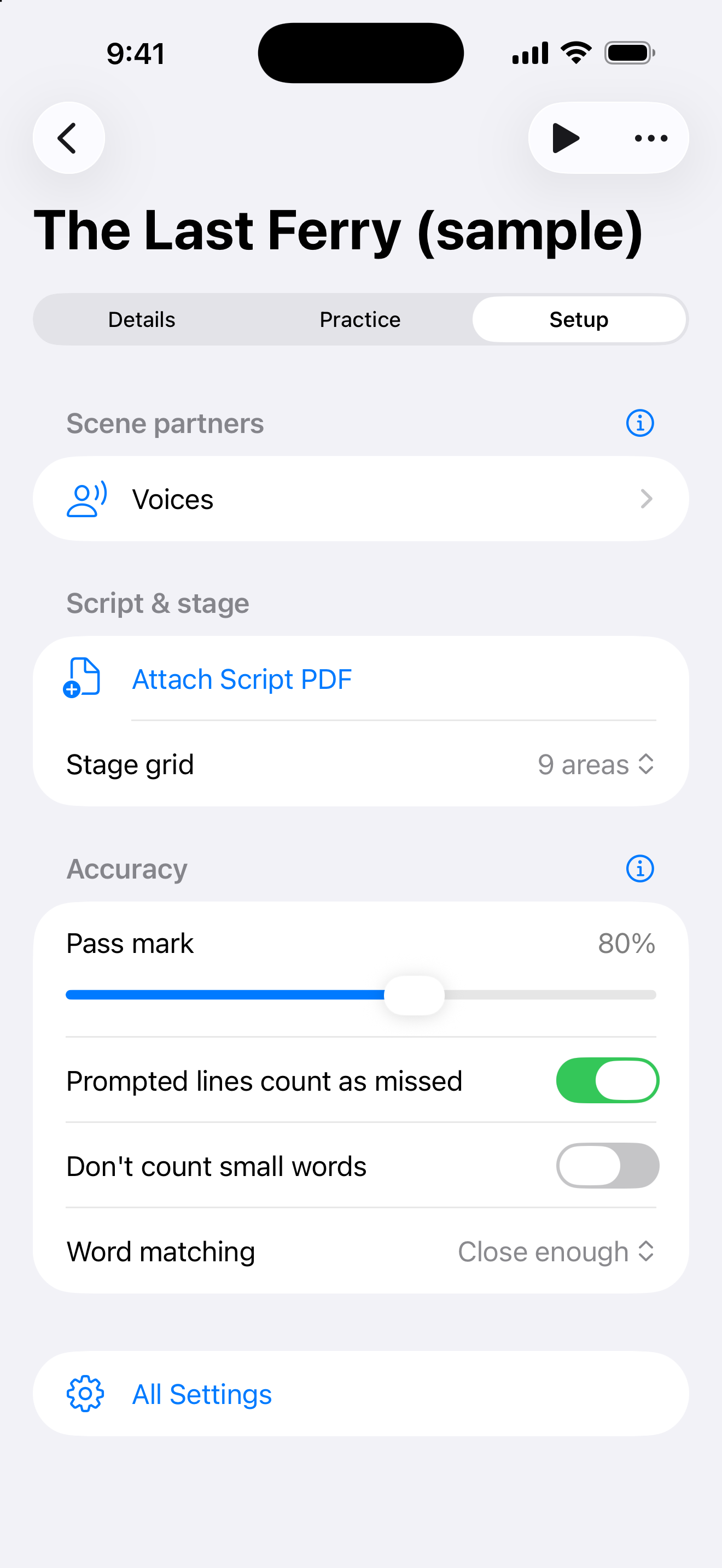
- Setup: voices, the script PDF, stage grid, accuracy.
Hold any line, anywhere, to edit it, mark it to work on, peek, or start a loop. Edits apply straight away, even mid-practice.
💡 Record your partners' lines (yours, a friend's, a reader's) for the most natural rehearsals. Unrecorded lines use a generated voice you can choose per character.
Rehearsal
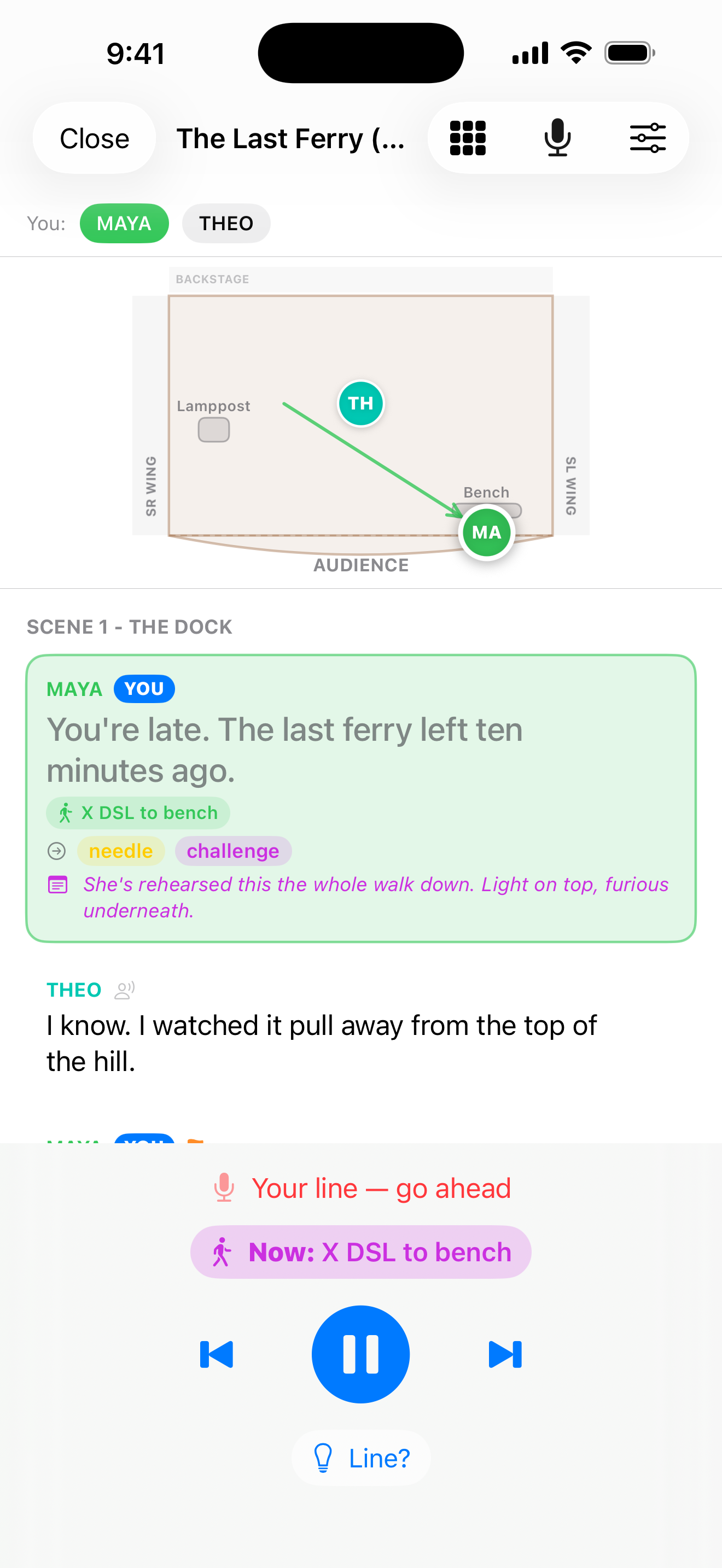
Partners' lines play, then Cue to Cue listens for yours and moves on when you've said it.
- Show, first-letters, or hide your lines
- Say "line" (or "what's my line") for the next missing words
- Repeat each line until I get it · Keep rehearsing · From/To ranges
- Listen to My Lines: just your part on repeat
- Shorten cues to the last few words
💡 A soft sound plays when you pass or miss, so you can rehearse without looking, perfect for the car.
Line practice
| Notecards | Cue, your line, a score. Missed cards come back each round until all pass. |
|---|---|
| Repetition ✦ | With the words, then from memory (optional writing in between). |
| New choice ✦ | Natural, slower, faster, with a pause, something new. |
| Word perfect ✦ | Again until every word is right. |
| Guess the cue ✦ | Pick the line that cues yours. No talking needed. |
Can't talk now
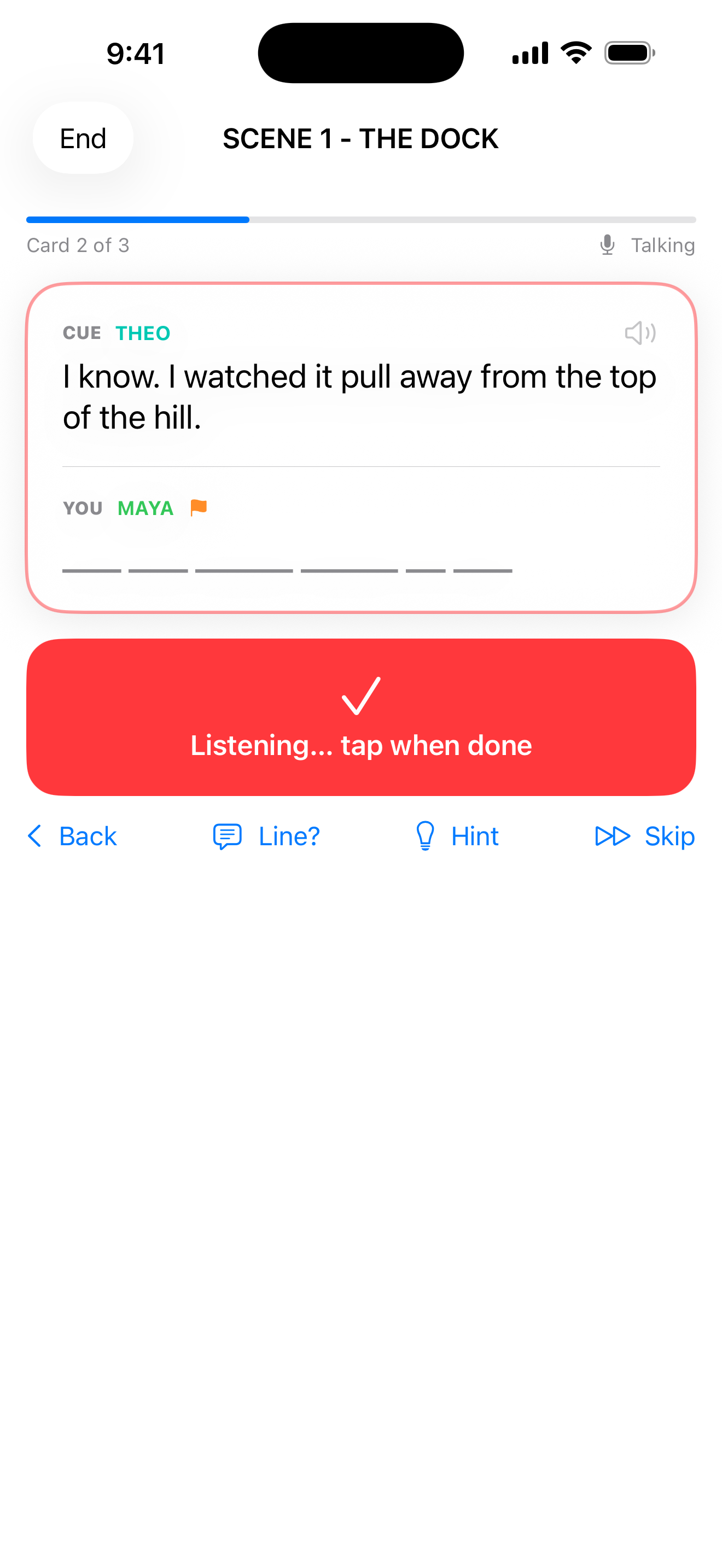
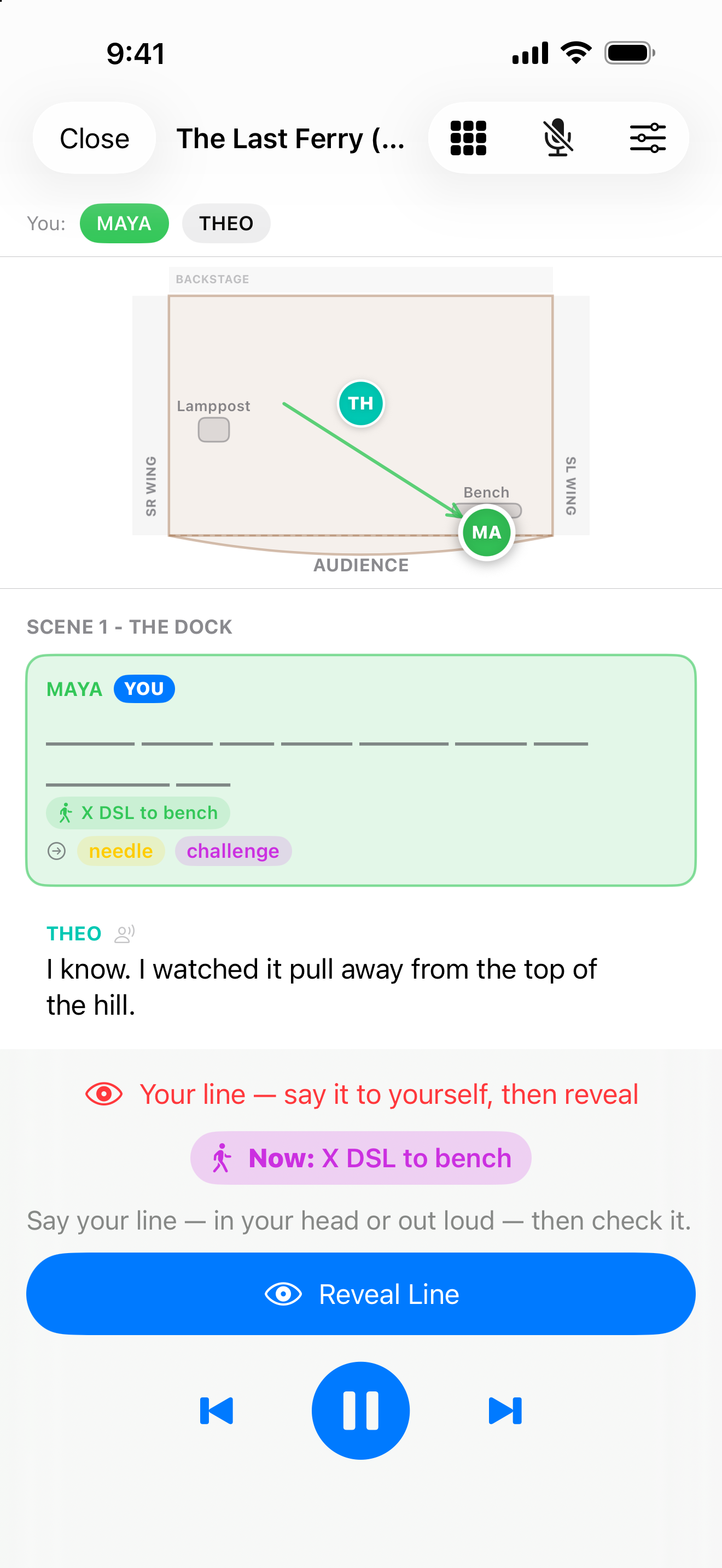
Tap the mic button in rehearsal and choose a Can't-talk option:
- Type it
- Word bank: tap the words in order
- Reveal & check myself: say it in your head, reveal, mark Got it or Missed it
Review, loops & lines to work on
- Missed Lines: anything under your pass mark, each with its cue.
- Lines to Work On ✦: hold a line → Mark to Work On.
- Loops ✦: hold a line → Loop From Here, tap where it ends, then Save Loop.
Takes & beats
Several takes of a line. Open a line and look under More takes: record the line again, then choose how your scene partners read it. Always the main take plays the same one every time; A different take each time picks one at random, so a rehearsal never sounds exactly the same twice. Tap Make Main to promote a take.
Beats. A beat is a timed pause between lines. In a scene, tap Add Beat (or Insert Beat Below on a line's menu) and set its length from half a second to ten. Rehearsal waits in silence for that long before the next line plays or listens for you. Tap a beat to change its length.
Ask someone to record
Have a friend, a castmate or a reader record a character's lines. Open the scene's menu (or Setup → Voices) and choose Ask Someone to Record, then pick the character and the lines.
- Share a request file: send it by AirDrop, Messages or email. They open it in Cue to Cue, record each line (as many takes as they like) and send a reply file back. Open the reply on your device and their recordings appear as takes on those lines.
- Send a link ✦: they record in their web browser, with no app or account, and their recordings arrive in your script automatically.
💡 They see the line before each of theirs, so they know when to come in.
Blocking ✦
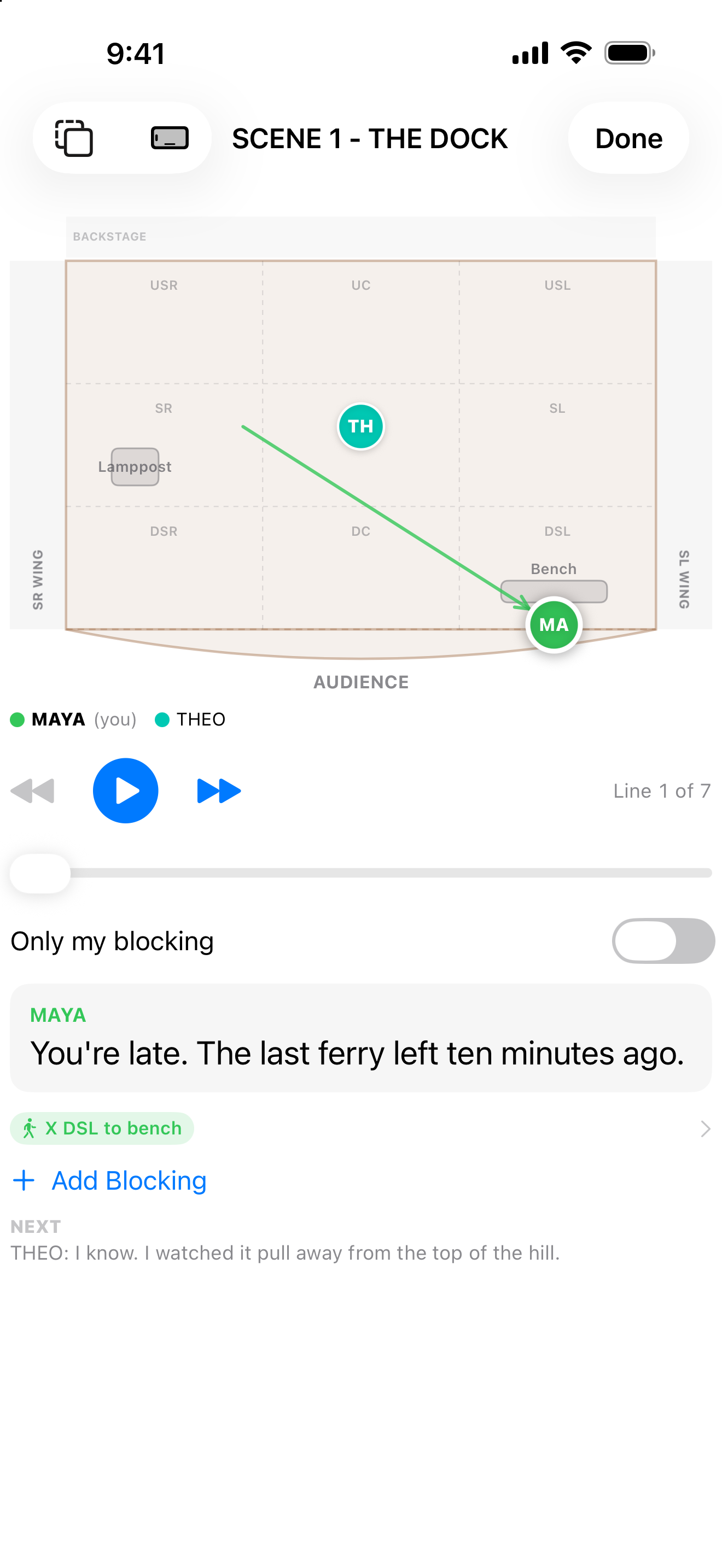
- On a scene, tap Blocking and add moves: action, where (tap the stage), to whom or what, prop, and when.
- Build the set and drag actors to their starting spots, including wings, backstage or the audience.
- Play the Stage Diagram line by line, then drill with Blocking Cards.
- Attach the script PDF to mark blocking on the page and export it.
Finding your character
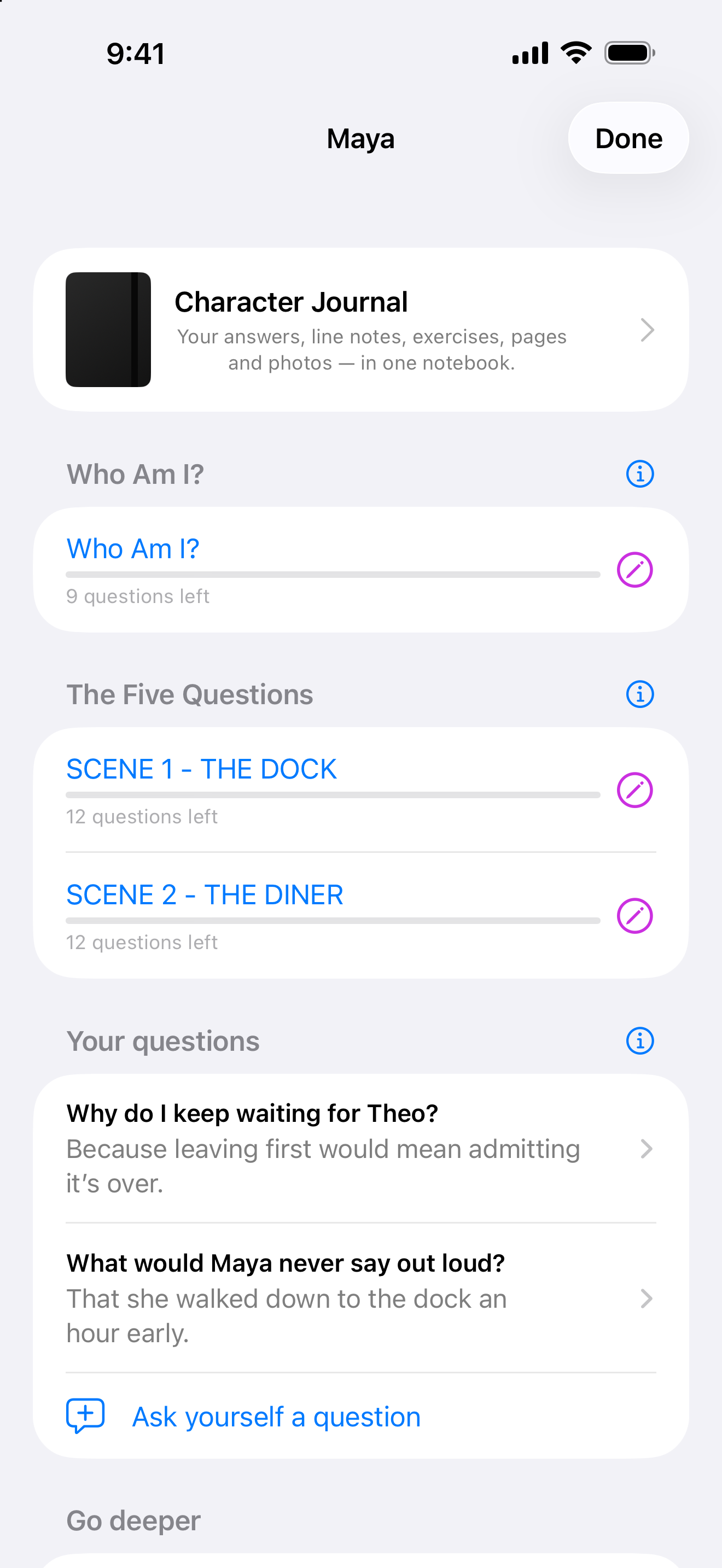
- Who Am I?: the big questions, asked once.
- The Five Questions ✦ for every scene
- Character questions, exercises and line notes ✦
- The Character Journal ✦, a notebook that gathers it all
Your progress
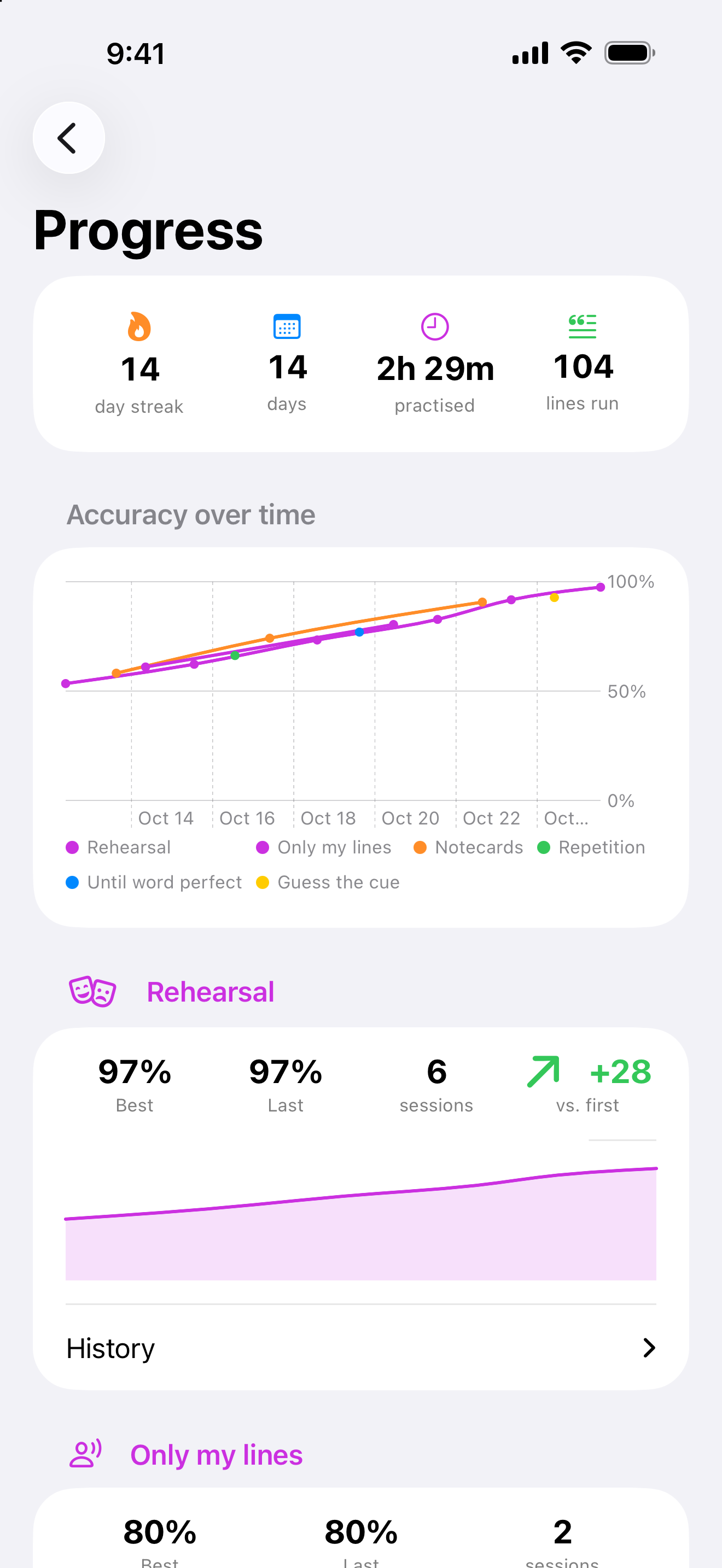
Practice → Your Progress shows your streak, time practised, accuracy over time, and for each practice type your best, last and full history, plus the five lines that need you most.
Settings & tips
The gear on the home screen opens every setting, grouped and searchable. Tap any ⓘ beside a section title for help.
- Accent or noisy room? Listening & Sound → Word matching → Close enough, and keep Noise reduction on.
- AirPods or car? Keep "Use AirPods / car / headset mic" on.
- A few minutes a day? Turn on Continue where I left off; Your Progress tracks your streak.
Account & Pro
The free plan needs no account. Pro is $5/month with a 7-day free trial. Subscribe on our website or in the App Store. Sign in with the same email everywhere (app: Settings → Account) and your subscription follows you.
Pro members can suggest and vote on features on the idea board.