

Habitform user guide
Everything Habitform does, in plain language. New here? Start with the first section — it's three steps.
Getting started
- Open the Timer tab (the round button in the middle of the tab bar).
- Drag the dial to set the length and tap Start. No setup needed.
- When it's done, say what it was — Read, Write, Work, Meditate, Workout, or another activity. Your most recent one is already picked, so it's usually just Save.
Time now, log later. That's it — goals, streaks and stats all build from there. You don't need an account to use Habitform; sign in later if you want to sync or connect with friends.
The timer
Every stretch of time you track is a session, logged against an activity and, if you like, a project.
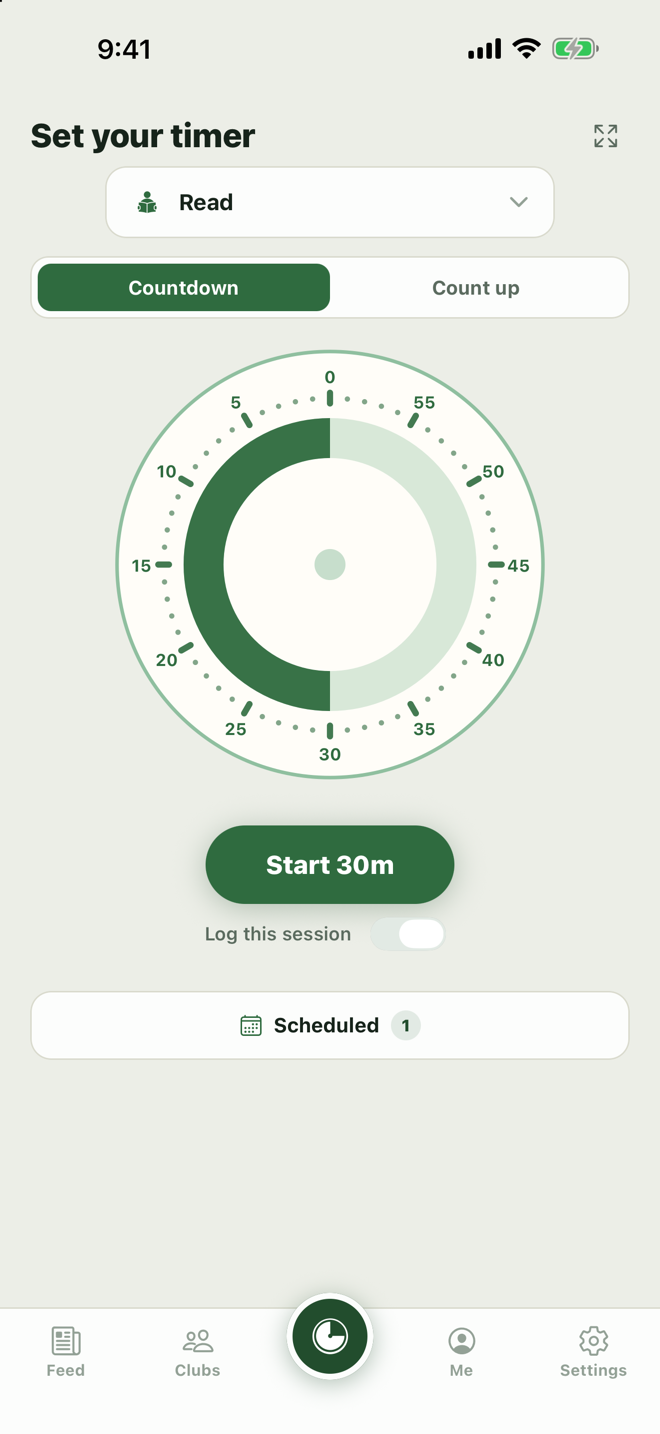
- Countdown or count-up. Countdown runs for a set length; count-up runs until you stop it.
- Time now, log later. The activity starts as "Decide later": you pick it when the timer ends. You can still choose one up front from the dropdown above the dial, which is useful if you block apps per activity.
- Time waiting for an activity isn't counted anywhere until you save it, and it's kept if the app closes in the meantime.
- Pause freezes the timer; Stop ends it and logs the time you did. Use +/- time to adjust a session in progress.
- "Log this session" under Start: turn it off for a plain timer that isn't recorded.
- Scheduled and Routines buttons start something you planned for today, or a routine.
- Double-tap the background (or the expand icon) for fullscreen.
Forgot to time something? Add it by hand from an activity's page. Hand-entered sessions count in your history and stats, but not toward streaks or trophies — those only count real, timed focus.
Activities & goals
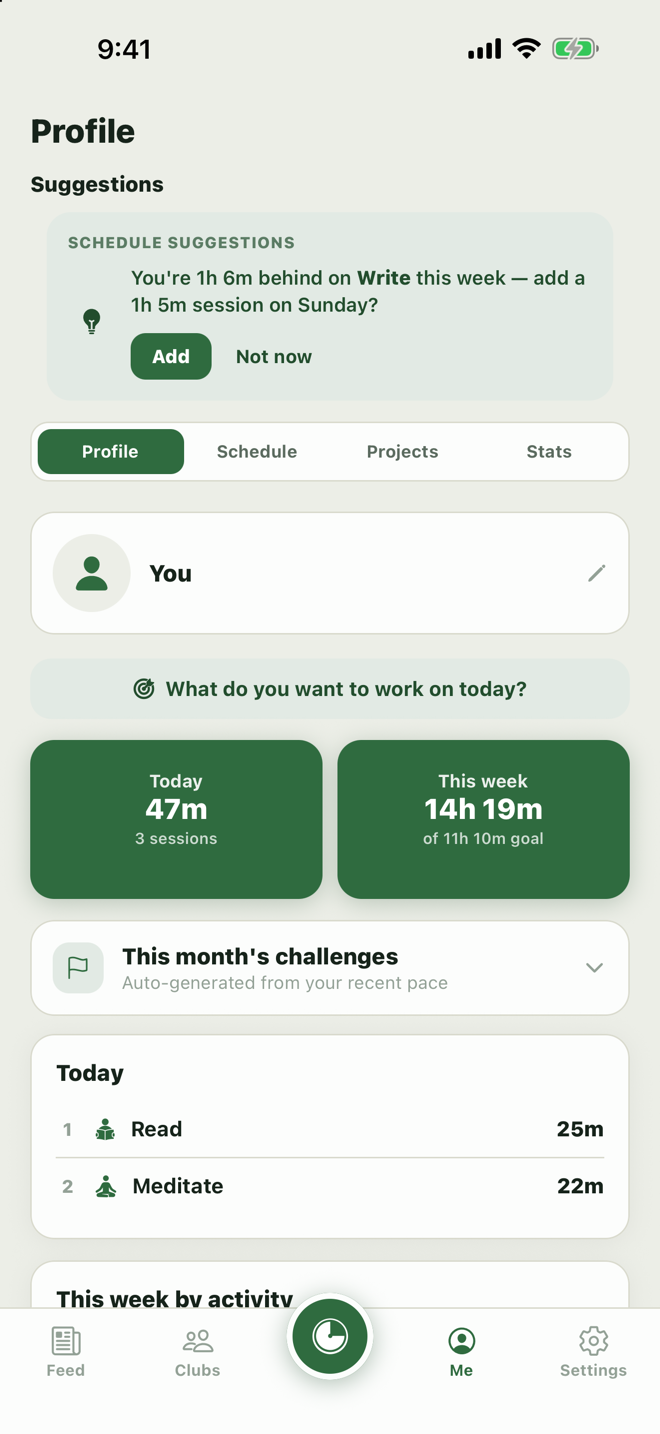
Give any activity a weekly goal in minutes — open the Me tab, tap an activity, and set its goal. Your overall weekly goal is the sum of them.
- The Profile page shows today and this week, with a progress bar against your weekly goal, and each activity's progress below it.
- A ✨ next to an activity means Habitform has a suggestion — a first goal based on what you've been doing, or a more realistic one if you've been coming up short.
- Choose which activities you see in Your activities; ask for a new one there if it's missing.
Projects
A project is anything you're working toward — a book, script, play, film, app, blog, journal, or anything else. Find them on the Me tab → Projects, grouped by type. Tap + to add one.
- Goals: a weekly time goal, a target (like 300 pages), a deadline — any or none.
- Search: for books and movies, search to fill in the title, author, cover, page count or runtime.
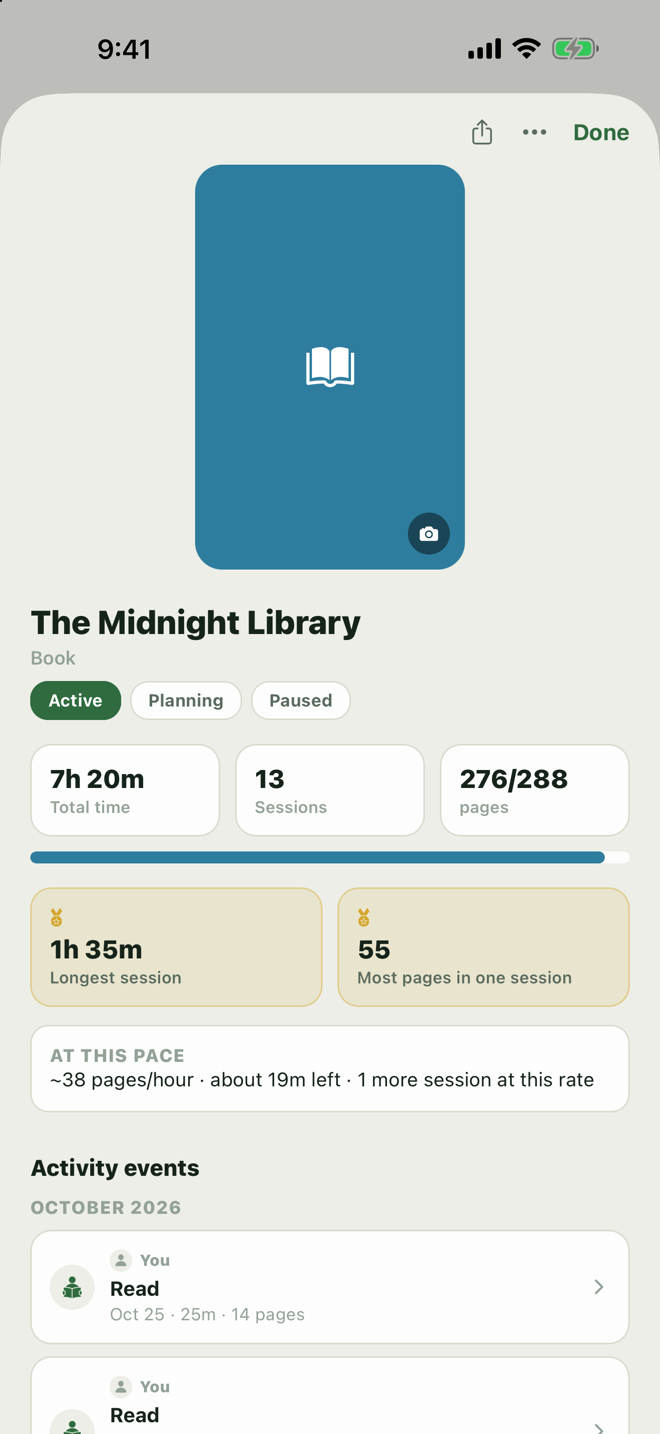
- Progress: after a session, enter the page you're on (for books and scripts) and Habitform works out the rest. With a few sessions logged, it estimates your pace and how long is left.
- Status: Active, Planning (not started) or Paused (not right now). Change it right on the project's page. Paused and planning projects stay listed but don't clutter your pickers.
- Sections: split a big project into parts — "Act 1", "Research" — each with its own goal.
- Share a project with a collaborator from its ⋯ menu.
- Finished books and movies go on your Bookshelf; finished writing on your Written shelf. Add a photo of a book's real spine from its page.
Schedule & routines
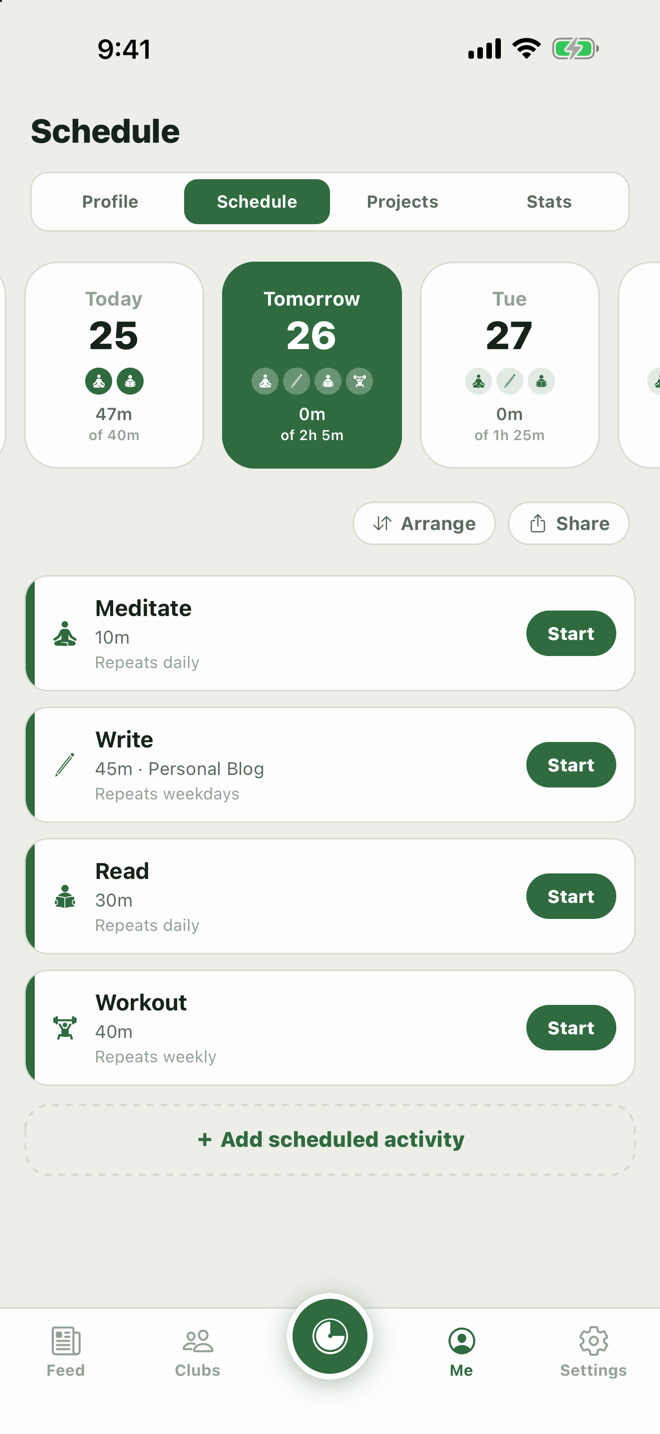
The Schedule page (Me tab) lays out planned time by day. Add a block for an activity — once, daily, weekdays, or on chosen days — and optionally tie it to a project.
- Set weekly limits in Settings (e.g. no more than 3 hours on Mondays); Habitform suggests moving things that go over.
- A routine is a named set of timed steps — warm-up 5 min → scales 5 min → song 10 min. Start it from the Timer's Routines button and it walks you through each step.
Stats & streaks
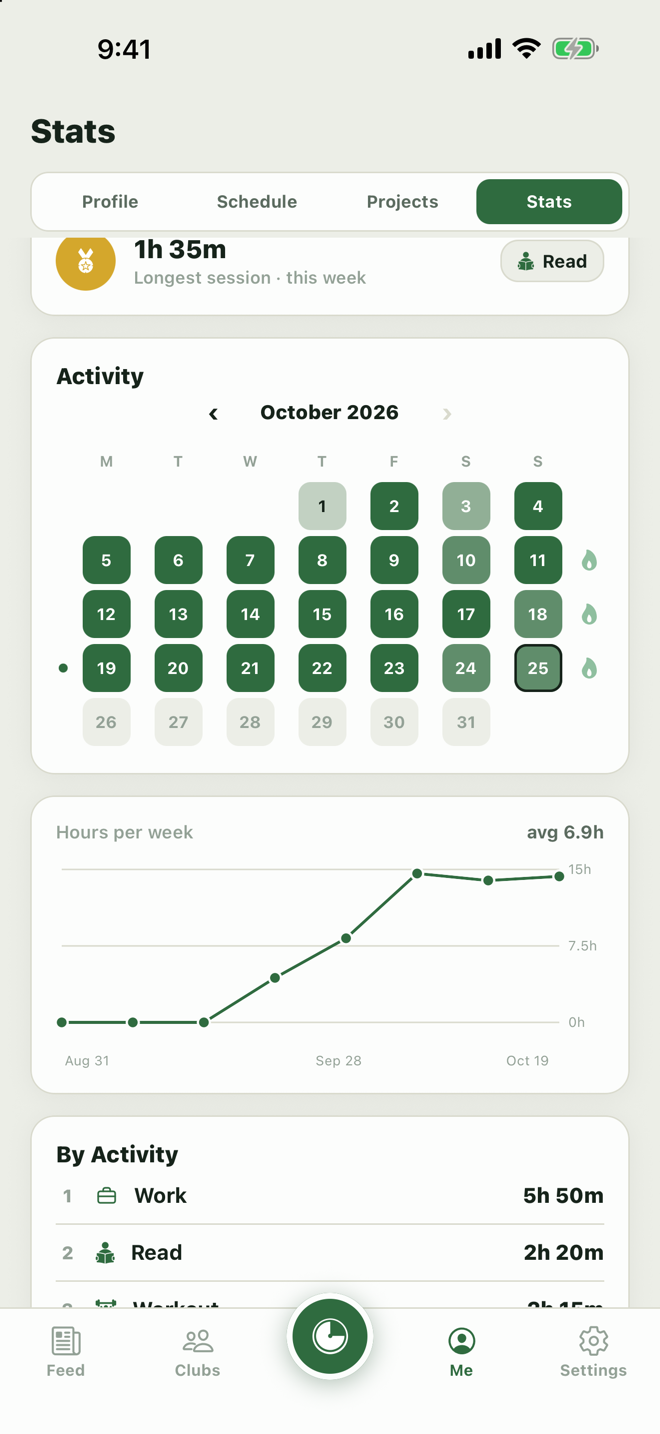
The Stats page shows week, month, year and all-time totals, a calendar heatmap, a weekly chart, your pace for activities like reading ("~40 pages an hour"), personal records, and the trophy room. Share a day or a week as an image from the share button.
Friends, clubs & events
Social features need an account. Everything is private by default.
- Following works by request — someone asks, you approve. Once you follow each other you can become buddies for a weekly accountability check-in.
- Feed: posts, day summaries and upcoming events from people you follow. Post with photos, comment, give a 🤙.
- Clubs: join or create one, post to it, and set a current pick — the book or movie everyone's on.
- Events: RSVP to club events. If the host tagged an activity, Habitform asks afterward whether you stayed and credits the time.
- Sharing: new sessions are private. Share one from its page, or turn on "Share new sessions by default" in Settings.
- Safety: report a post, comment, profile, club or event from its menu, and block anyone. See our child safety standards.
Your account
- Sign in with email and password, or tap Email me a sign-in code to skip the password.
- Two-factor authentication: Settings → Account → Two-factor authentication → Set up, then scan the QR code with any authenticator app.
- Delete your account any time: Settings → Account → Delete account. What gets deleted.
Settings
- Timer face & appearance: pick a dial style, light or dark mode, and an automatic night face after 10pm.
- Timer, alerts & privacy: alarm sound, haptics, lock-screen alerts, suggestion banners, sharing default, and the App Blocker.
- App Blocker (iPhone): choose apps to shield while any timer runs — one list for everything, or a different list per activity. Not available on Android.
- Strava: connect your account and pick which Habitform activity each Strava sport counts as.
Feature requests
Settings → Feature requests. Suggest a feature with +, and vote ideas up or down. Requests move from Open to Planned, In Progress and Shipped as we build them. Long-press your own open request to withdraw it.
Watch, Mac & widgets
- Apple Watch: pick an activity and a length on your wrist; the session is sent to your phone. A timer running on your phone shows on the watch too.
- Mac menu-bar blocker: a separate Mac app that blocks the apps and websites you choose while you focus — on its own, or following your phone's timer when you sign in.
- iPhone widgets: a timer widget, a weekly-goal ring, and today's schedule, each tappable to start.
Still stuck? Get support.