The Industry user guide
Everything The Industry does, in plain language. New here? Start with the first section — it's three steps.
Getting started
- Create an account at the sign-up page with your email and a password.
- Tap Log (top right) and choose Audition.
- Answer one question per screen — the project, the role, the date, how it went — then check the summary and save.
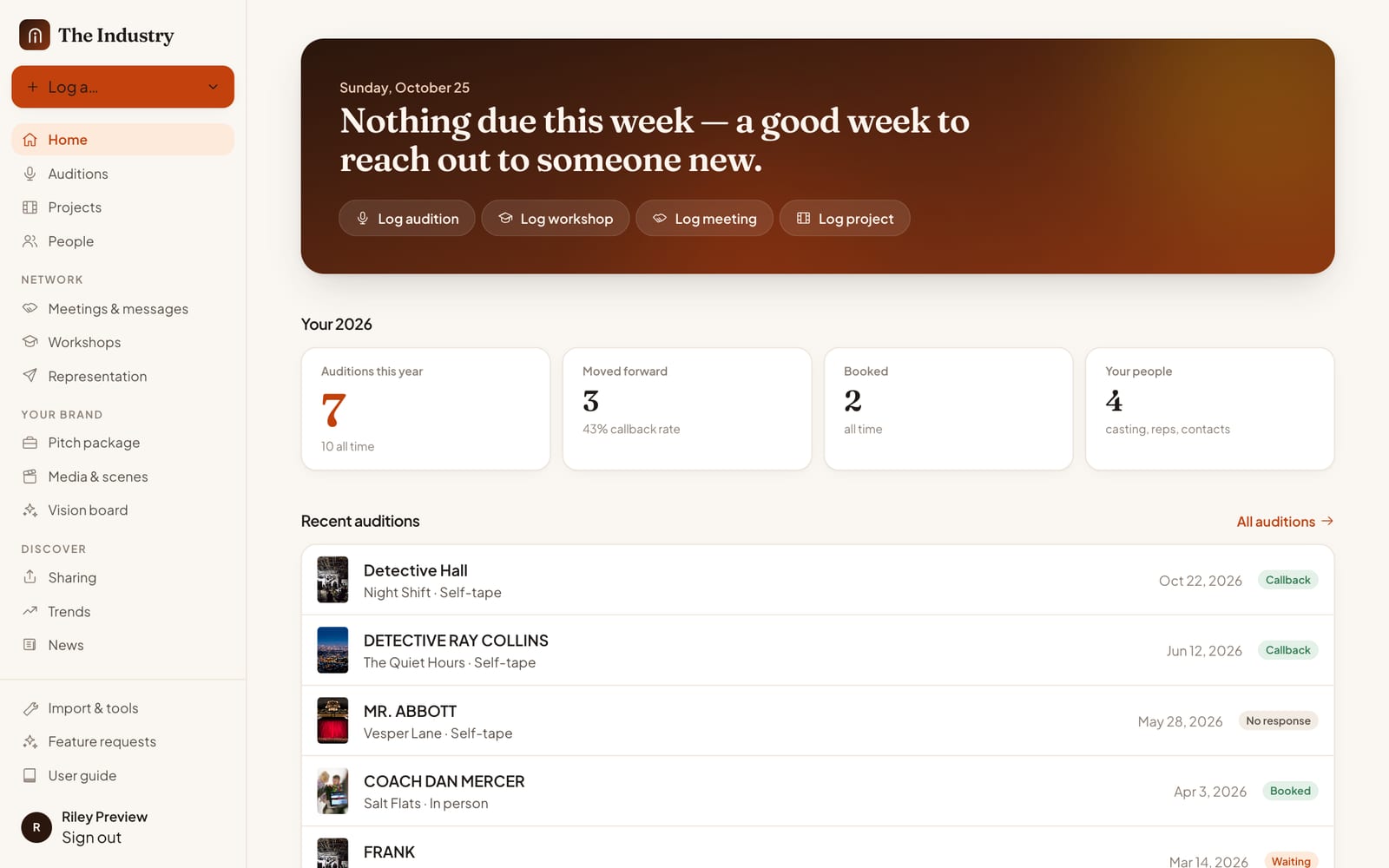
Your home screen fills in from there: auditions this year, how many moved forward, bookings, and the people you've met along the way.
Logging
Everything you add goes through Log: auditions, workshops, meetings, projects and reps. Each one is a short step-by-step flow ending in a review screen, so nothing is saved by accident.
- Auditions are grouped by year in rows you can scroll sideways. Tap one to update the outcome — pending, callback, pinned, on avail, booked, released and more.
- Only submitted? Log it as a submission; if it turns into an audition later, link the two.
- Workshops keep who taught it and who you met, so those casting directors land in your people.
Paste a casting notice
On the Auditions page, choose Paste a casting notice.
- Open the breakdown on Actors Access, Casting Networks or Backstage (the notice itself, not the search results), or an email from your agent.
- Copy all of it — select-all and copy is fine. The more you include, the more fills in.
- Paste it, pick where it came from, and press Extract.
- If it lists several roles, pick yours.
- Check every field. Anything the notice didn't say is left empty rather than guessed — fill in what you know.
- Choose "I auditioned" or "I only submitted", set the date, and save.
Saving the same notice twice makes two auditions — if you've already saved it, open that audition instead.
Import your history
Bring in years of past auditions at once from Tools → Audition history (Pro).
- Put it in a spreadsheet with one row per audition or submission, and the column names Project, Role, Casting Director, Date, Outcome and Notes. The import page has a template to download.
- Every row needs a Project or a Role. Write dates like 2026-03-14 or 3/14/2026.
- An Outcome such as callback, booked or released makes the row an audition; leave it empty for a plain submission.
- Export as CSV (Google Sheets: File → Download → CSV; Excel: Save As → CSV UTF-8) and upload it.
- Fix anything in the table that appears, then press Commit. Nothing is saved before that.
Your people
Your people are everyone you've actually crossed paths with — casting directors you've read for, reps, people you met at workshops — plus anyone you choose to follow. Each person's page shows your auditions, workshops and messages together.
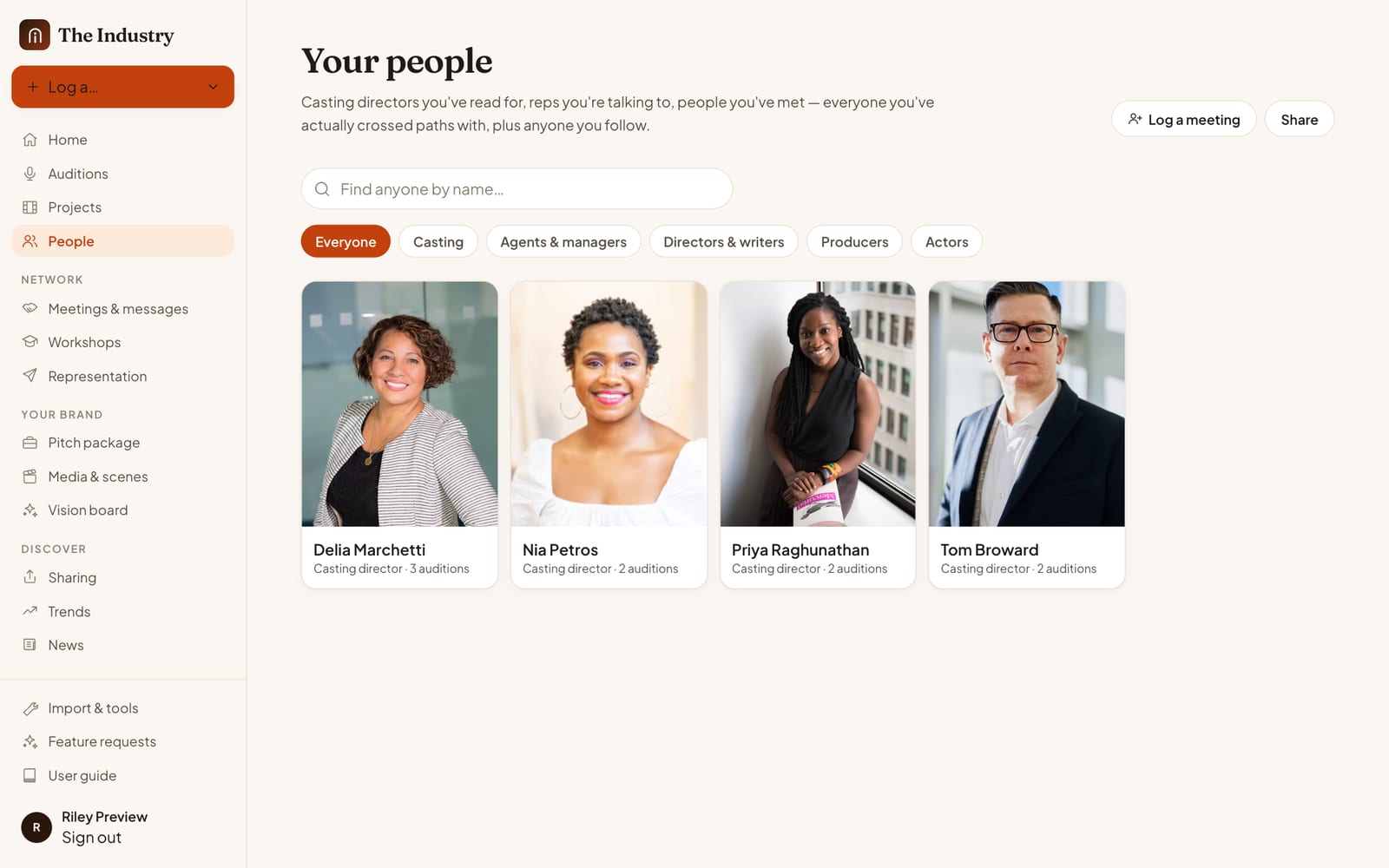
Search reaches anyone in the app; the everyday lists stay limited to people you know, so they don't fill up with strangers.
Projects
Projects show as a poster gallery (switch to a list any time) and can be grouped by status, year or type. A project page has tabs for cast, directors, writers, producers and casting.
- Dream projects: star a project to follow it, and keep an eye on when it casts and shoots.
- Lookups (Pro): search a film or show to fill in its poster, genres and credits.
Media & scenes
Under Media & scenes, upload headshots, photos and video clips straight from your device, or add one by link (YouTube, Vimeo, Google Drive, Dropbox). Scenes hold sides and scripts with a preview of each PDF.
Free accounts hold 15 photos, 10 videos and 20 scenes; Pro is unlimited. Self-tapes attached to auditions never count toward those limits.
Sharing (Pro)
Make a share link for an agent, manager or casting office and tick exactly what it shows — your pitch package, chosen auditions, chosen casting directors. Add a password if you like, and turn the link off whenever you want.
On your phone
- iPhone: open the app in Safari, tap Share → Add to Home Screen.
- Android: open it in Chrome, tap the menu → Install app.
It then opens full-screen from your Home Screen like any other app.
Your account
- Forgot your password? Use "Forgot password?" on the log-in page and we'll email you a link.
- Security: in Settings → Security, add a passkey or an authenticator app for two-factor sign-in.
- Free plan limits: up to 50 each of auditions, submissions, projects, people, companies, workshops, meetings and reps, plus 15 photos, 10 videos and 20 scenes. Your counts are on the Go Pro page. Reaching a limit never touches what you've saved — you just can't add more of that kind.
- Pro: $5/month for no limits, plus lookups, sharing, trends and news. Upgrade from any Pro feature or from Settings.
- Feature requests: suggest ideas and vote on others' under Feature requests in the menu.
Still stuck? Get support.