
WorkFlow user guide
Everything WorkFlow does, step by step. New here? The first section takes about two minutes.
Getting started
- Create your account on the sign-up page with your email or Google, and pick Standard or Pro. Your 14-day trial starts now.
- Turn on two-step sign-in. Scan the QR code with an authenticator app (Google Authenticator, 1Password, Authy), or add a passkey with Face ID or Touch ID. Every sign-in asks for it.
- Look at Home. It opens on this month, with a short Needs you list. Everything else is in the menu: Work, Money, Taxes and Wealth.
Connect a bank or card
- Open Accounts and press Connect. Pick your bank in the Plaid window and sign in there; your password goes to your bank, never to WorkFlow.
- Up to two years of history comes in. After that, new transactions arrive once a day, or whenever you press Sync.
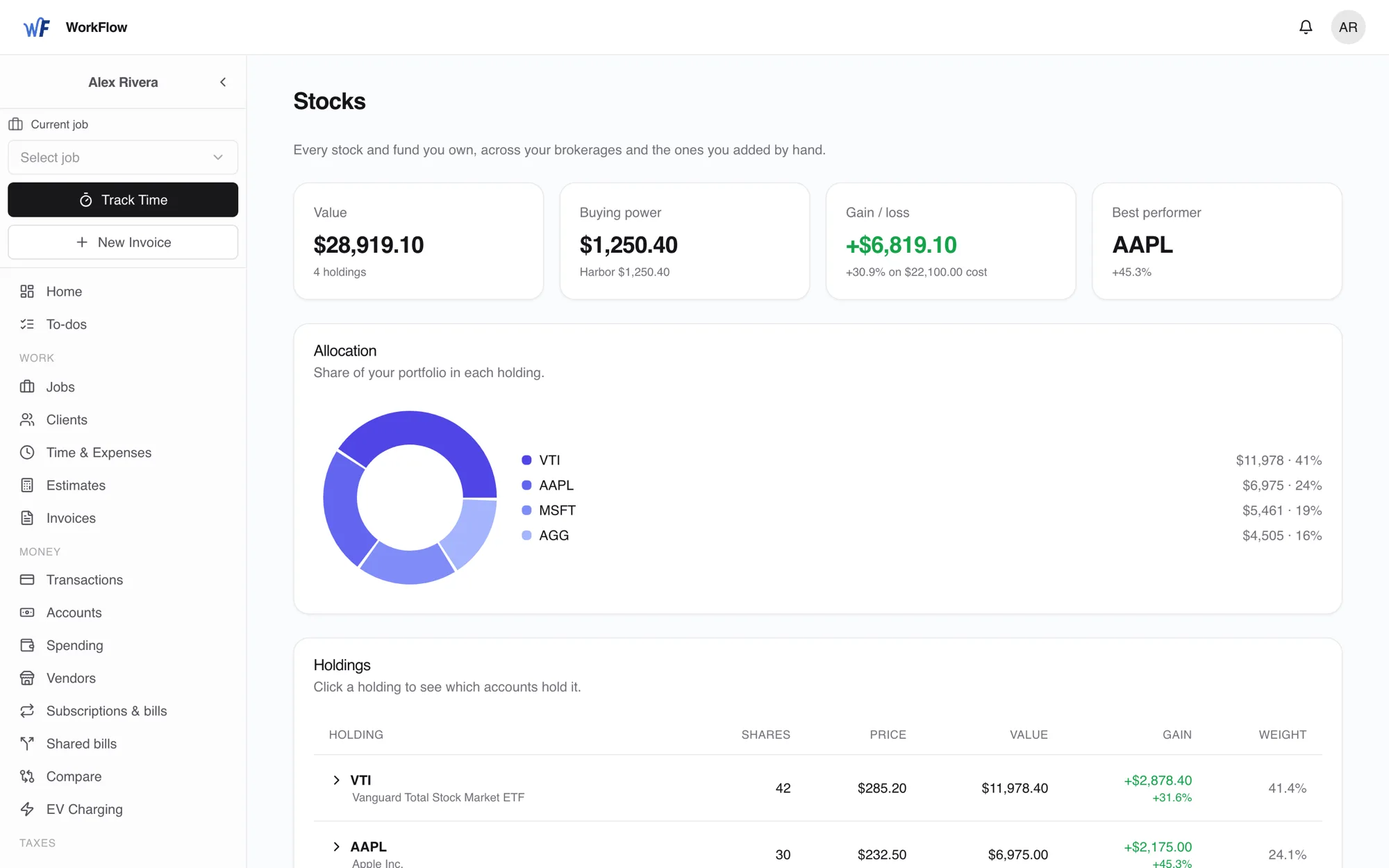
- For a brokerage account, allow it to share holdings when asked, and your stocks appear on Stocks.
- Older history: download a CSV from your bank and use Transactions → Import. Anything you already have is skipped.
Your accounts
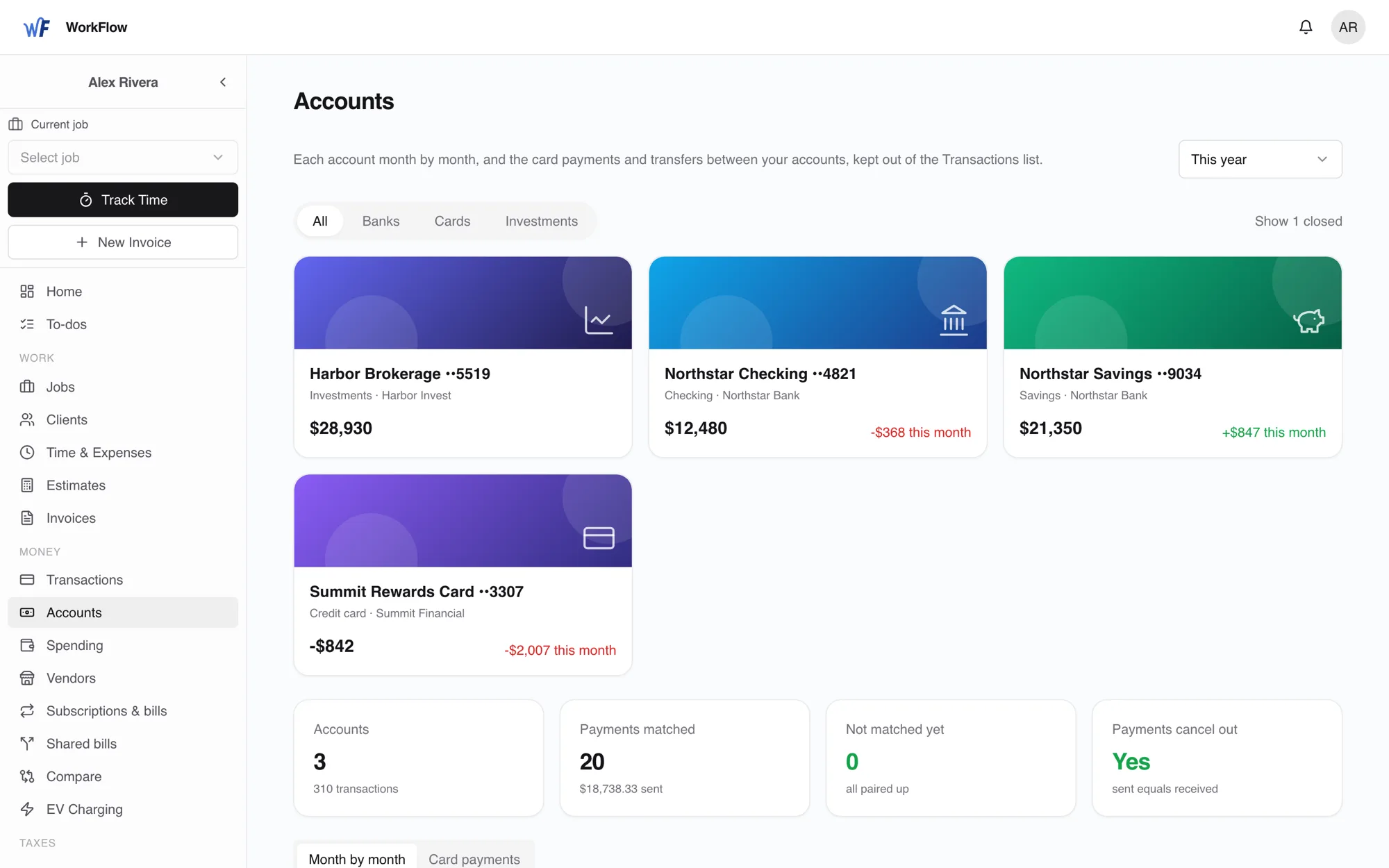
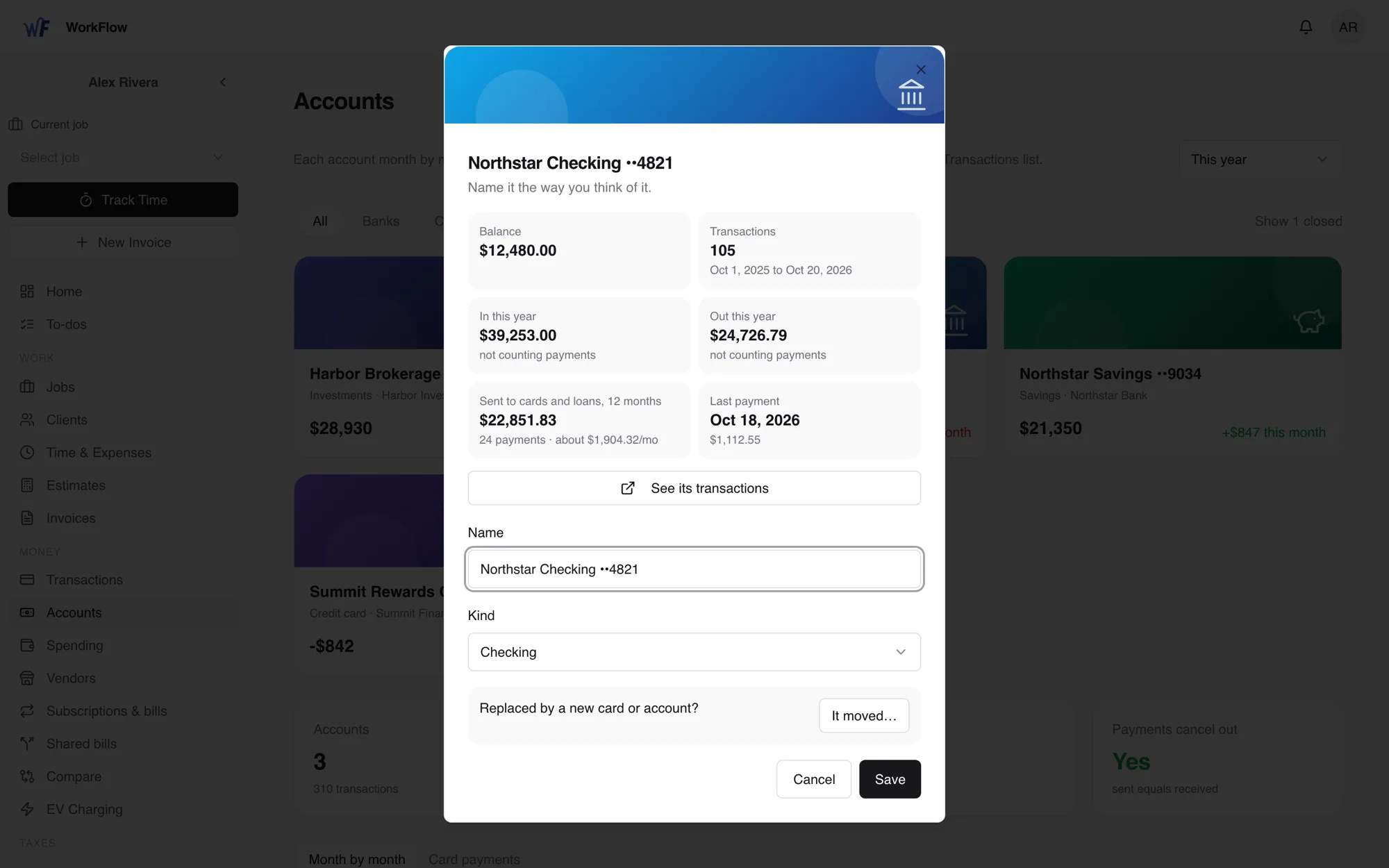
Each account is one card with a cover picture, its balance and this month's change. Tap a card to see its transactions, money in and out this year, payments and the next expected payment, or to rename it and change its type. Closed accounts are hidden; press Show closed to see them.
A card was replaced
When a bank moves you to a new card, the new card's history often repeats the old one's charges.
- Open the old card on Accounts and press It moved….
- Pick the new card. You'll see how many charges repeat, and their total, before anything changes.
- Confirm. The repeats are removed; your names, comments, splits and write-offs stay on the originals, and the old card is marked closed.
What needs a look
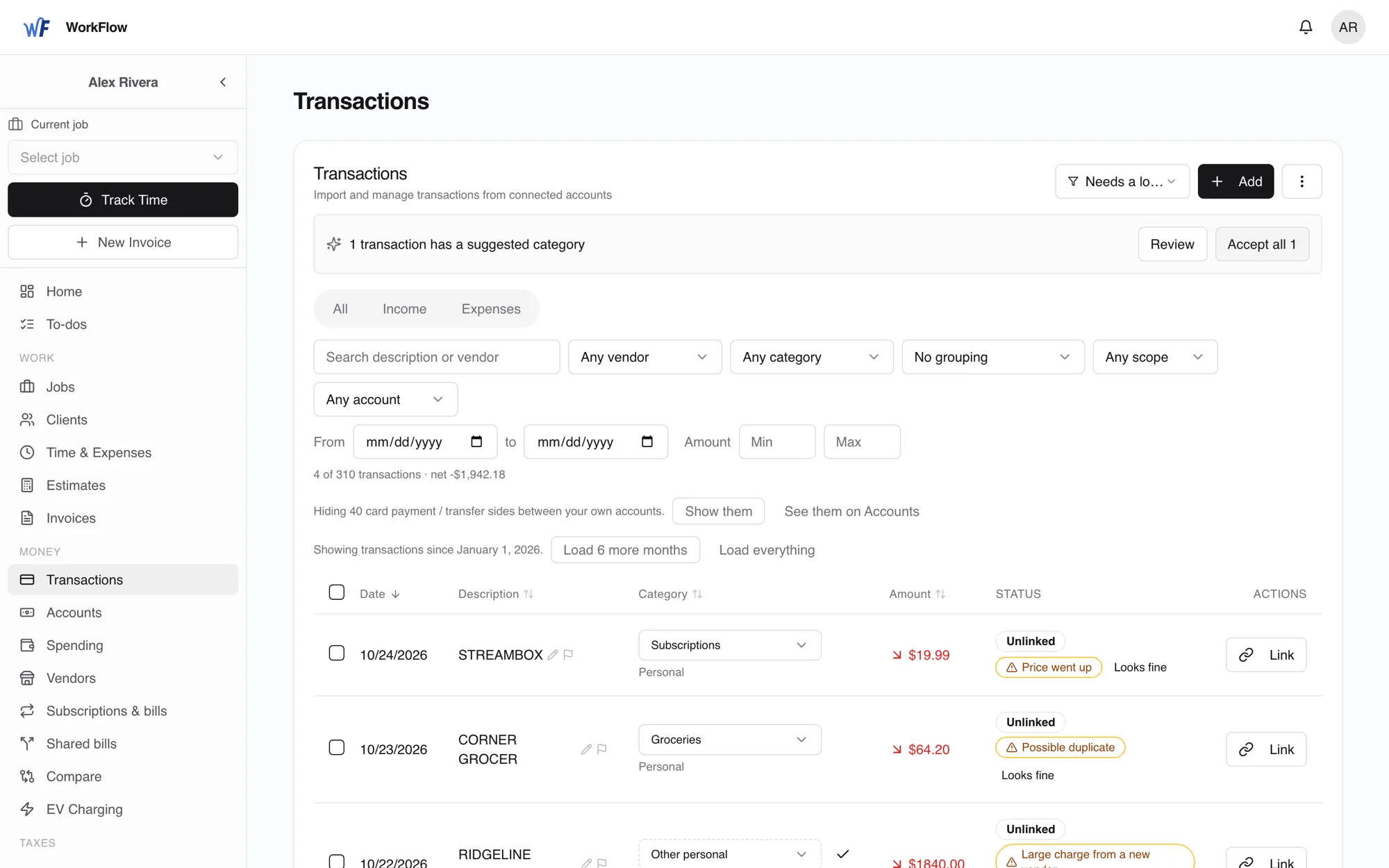
- Flags mark big charges from a new vendor, the same charge twice, a charge far above usual, a price increase, a refund, or a card payment with no other side. Fix it, or press Looks fine.
- Categories: suggestions wait for a yes. Accept the confident ones in one tap, or select rows and choose Set category.
- Charts: click any bar or slice to see the transactions behind it.
- Rename a transaction, or select several (your paychecks, say) and rename them together.
Time and invoices
- Add a client and a job under Work → Jobs. Set the rate once (hourly, daily, flat or per project). Projects inside a job are optional.
- Log time with the timer, by hand, or by connecting Harvest.
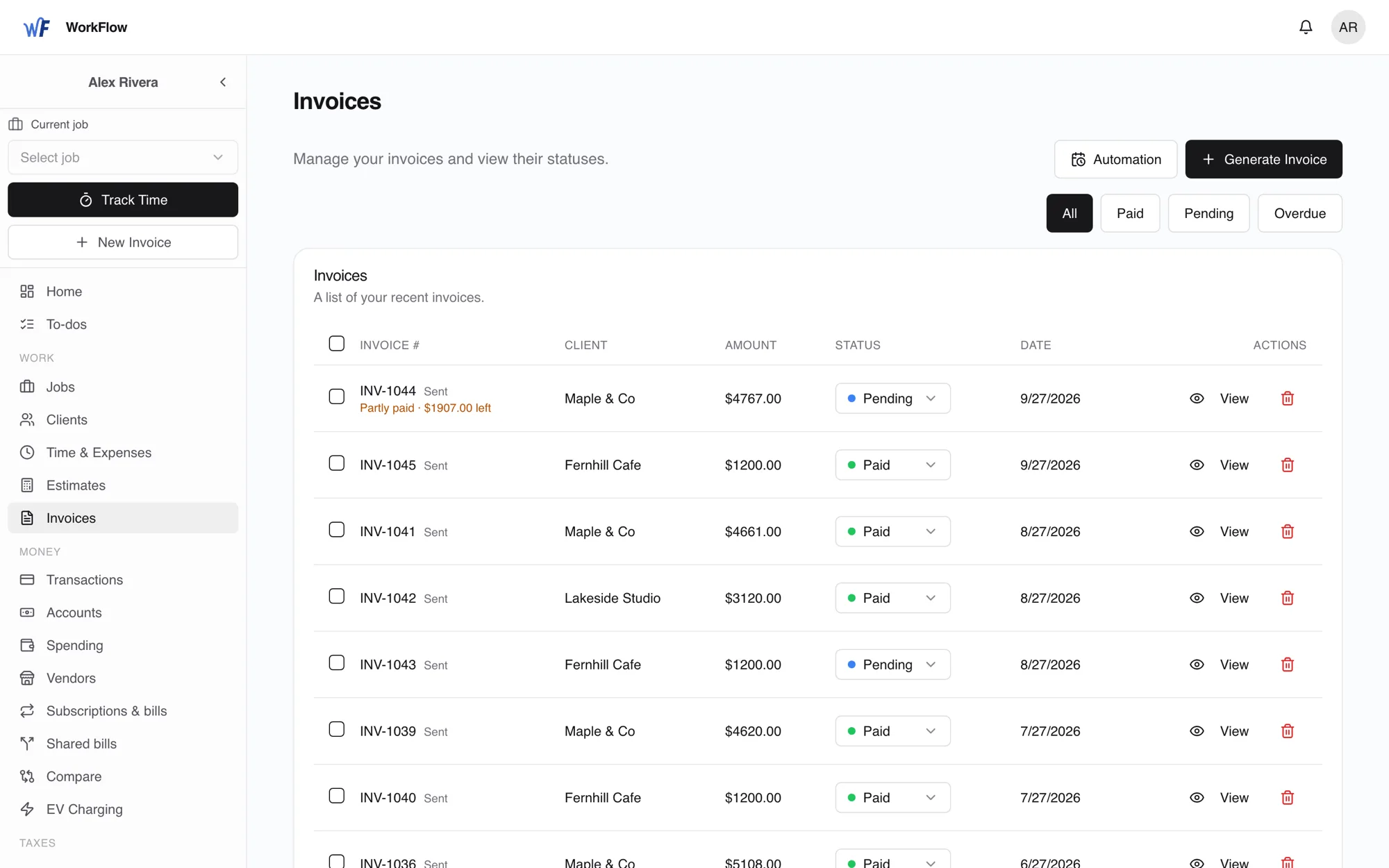
- Create an invoice for a week, two weeks, a month, a quarter or picked entries. Preview the PDF and send it from your Gmail (Pro). Several invoices can go in one email.
- When money arrives, open it on Transactions, press Link and pick the invoices it pays. Partly paid invoices show what's left.
- Need hours for a client? Hours report on Jobs filters by dates, job, project and billing status and downloads a CSV.
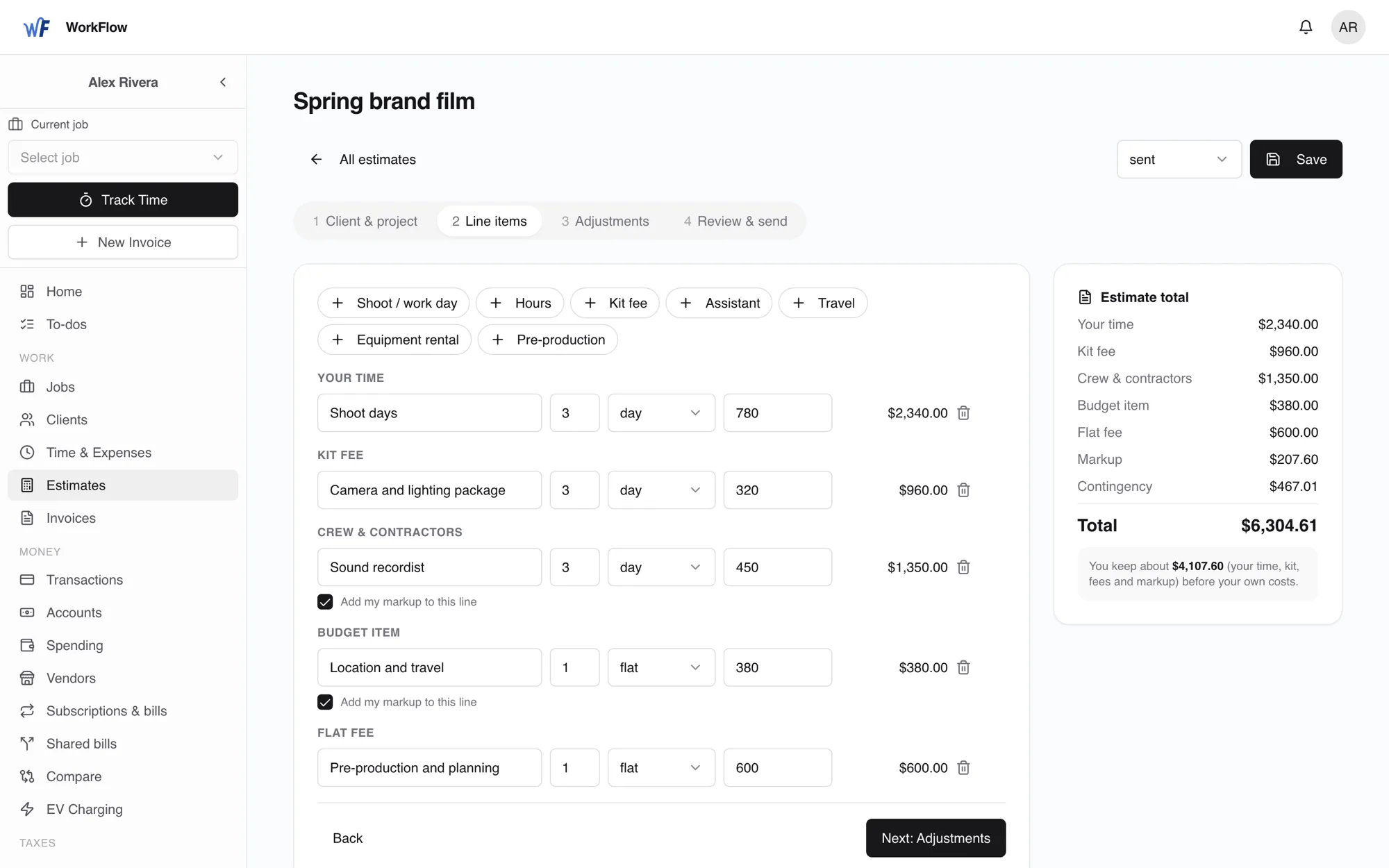
Estimates (Pro)
- Work → Estimates → New estimate. Step 1: the client and project.
- Step 2: add lines — your days or hours, a kit fee, crew, budget items like travel and rentals, flat fees.
- Step 3: markup on passed-through costs, contingency, discount and tax.
- Step 4: review, then download the PDF or email it to the client. Save as template to reuse your usual setup.
Shared bills (Pro)
- Add the transaction under Money → Shared bills with your share. Only your share counts in your spending.
- Connect Google Sheets once, then send the month's shared bills to the sheet you both use.
- When their transfer arrives, press Pays back a bill and tick every month so future ones link themselves.
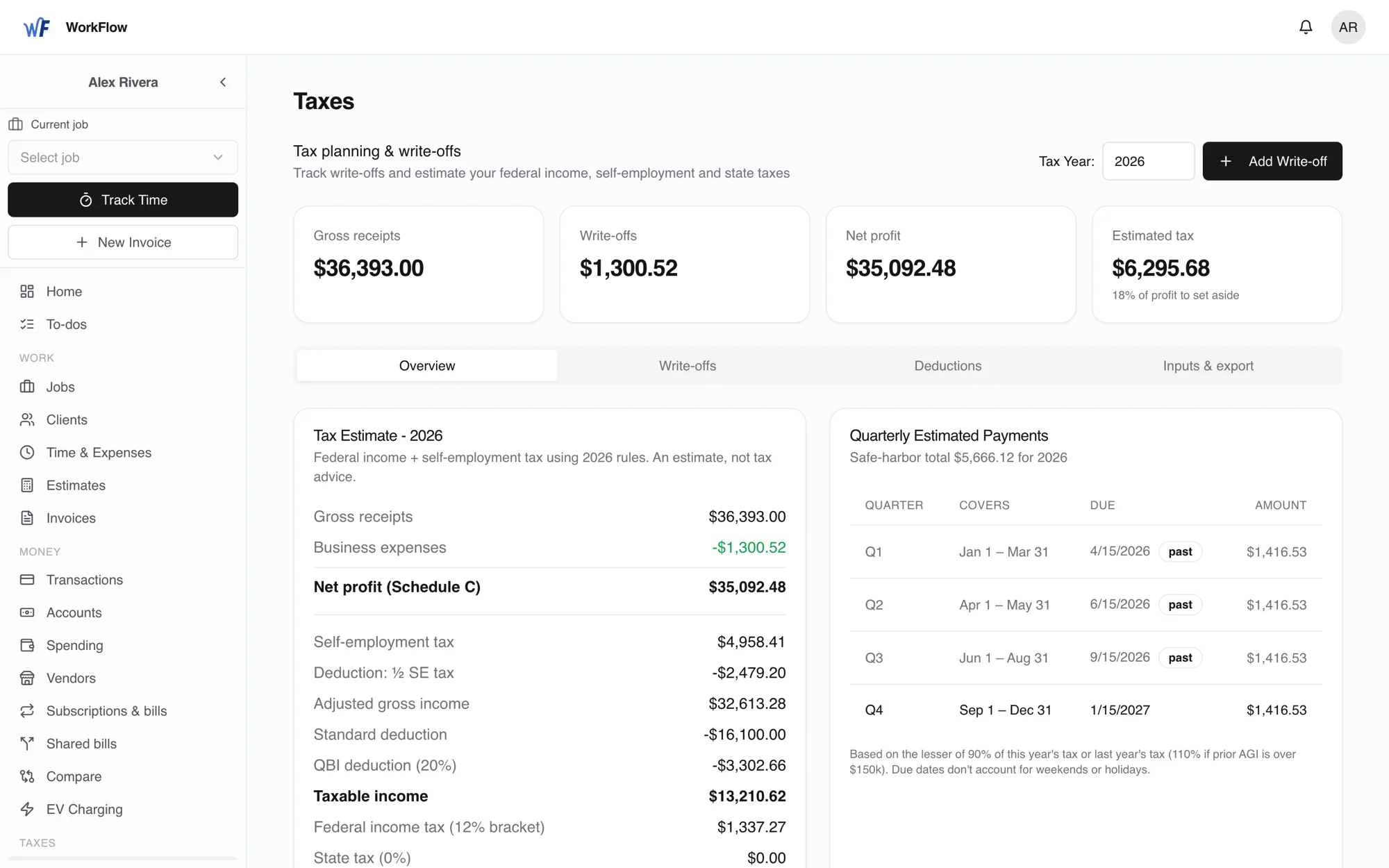
Taxes
- Write-offs: accept suggestions, or hide them for good.
- Deductions: home office, vehicle and retirement contributions each have a short form.
- Accountant package (Pro): one zip with every transaction, write-off and receipt.
Stocks (Pro)
Every holding across your brokerages and the stocks you added by hand, with value, gain, weight and buying power. Prices are what your brokerage reported at the last sync, not live quotes.
Your data
- Download everything: Settings → Security → Your data.
- Security alerts: the bell at the top tells you about new sign-in devices, new connections and downloads.
- Delete your account: see how deletion works.